Turn off reminders and pop-ups
You tell QuickBooks not to open windows by itself when it starts. A window left open in QuickBooks can stop the Web Connector’s sync, so the fewer windows QuickBooks opens, the steadier the sync.
Before this chapter: the company file is back in multi-user mode, or you chose to stay in single-user mode (chapter 09). Takes about: 5 minutes. You need: QuickBooks open on your company file. Step 2 changes a company preference, and QuickBooks accepts that only in single-user mode: if the file is in multi-user mode, step 2 tells you to switch to single-user mode for a moment and back after. No one else can use the file in between. Steps 1, 3 and 4 work in either mode.
Every page below is in Edit → Preferences. Each has two tabs, My Preferences and Company Preferences. My Preferences belong to the QuickBooks user who is signed in, so make these changes as the user who will be signed in when AutoBook syncs. Click OK on each page to keep your changes; Cancel closes the window without saving them.
Step 1 — Keep the Reminders list from opening
Section titled “Step 1 — Keep the Reminders list from opening”In QuickBooks, open Edit → Preferences. In the list on the left (1), click Reminders. Click the My Preferences tab (2).
Make sure Show Reminders List when opening a Company file is not ticked.
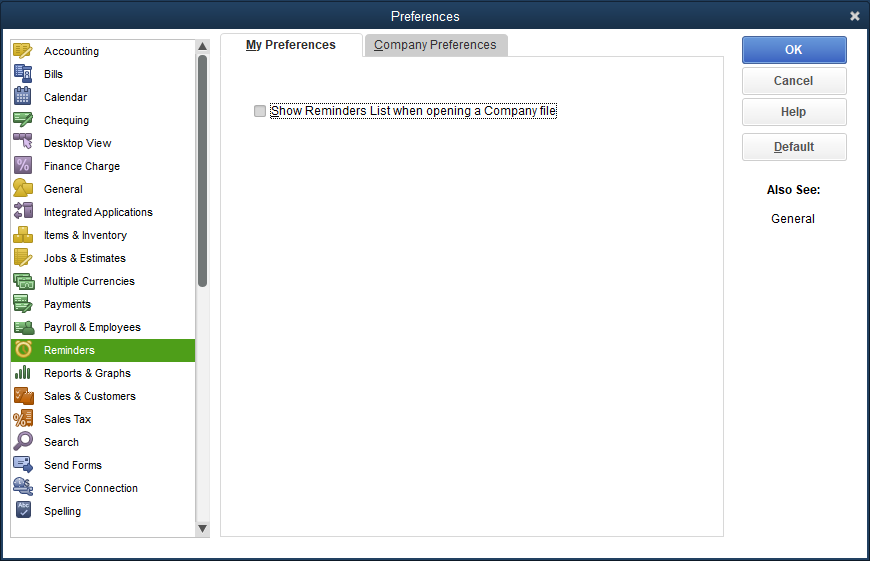
Click OK.
Step 2 — Choose which reminders are shown
Section titled “Step 2 — Choose which reminders are shown”This step needs single-user mode. Look at the QuickBooks title bar: if it shows (multi-user), ask the others to close the company file, then choose File → Switch to Single-user Mode. QuickBooks confirms with a QuickBooks window, “You’re in single-user mode now. Enjoy your alone time with QuickBooks!”; click OK. If you open the reminders’ Company Preferences tab in multi-user mode, QuickBooks shows Not allowed in multi-user mode: “To change most company preferences, you must switch to single-user mode.” Click OK, then Cancel on Preferences, and switch as above.
Open Edit → Preferences → Reminders again and click the Company Preferences tab (2). The page lists each reminder, such as Cheques to Print, Overdue Invoices, Bills to Pay and To Do Notes. Most rows have three choices: Show Summary, Show List and Don’t Remind Me; a few have none (such as Almost Due Invoices) or are greyed out (such as Open Authorizations To Capture), and those you leave as they are.
Choose Don’t Remind Me for the reminders you do not need. Any reminder you keep can open a window when the file opens, and that window must be closed before sync can run.
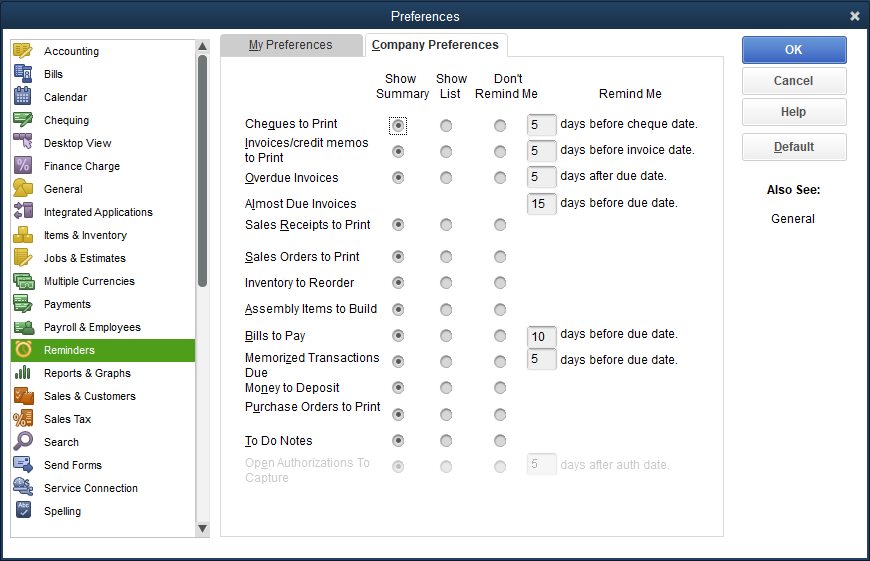
These choices are for the whole company file, so everyone who opens it sees the change. Ask your team before you change them. Click OK.
If you switched to single-user mode for this step, choose File → Switch to Multi-user Mode now, as in chapter 09, step 1. QuickBooks confirms with “You can now use this file in multi-user mode.”; click OK.
Step 3 — Stop QuickBooks from opening windows with the file
Section titled “Step 3 — Stop QuickBooks from opening windows with the file”Open Edit → Preferences, click Desktop View (1), then the My Preferences tab (2).
Under DESKTOP:
- Click Don’t save the desktop. With Save when closing company, QuickBooks opens again the windows you left open.
- Untick Show Home page when opening a company file.
- Leave Show Live Community and Help unticked.
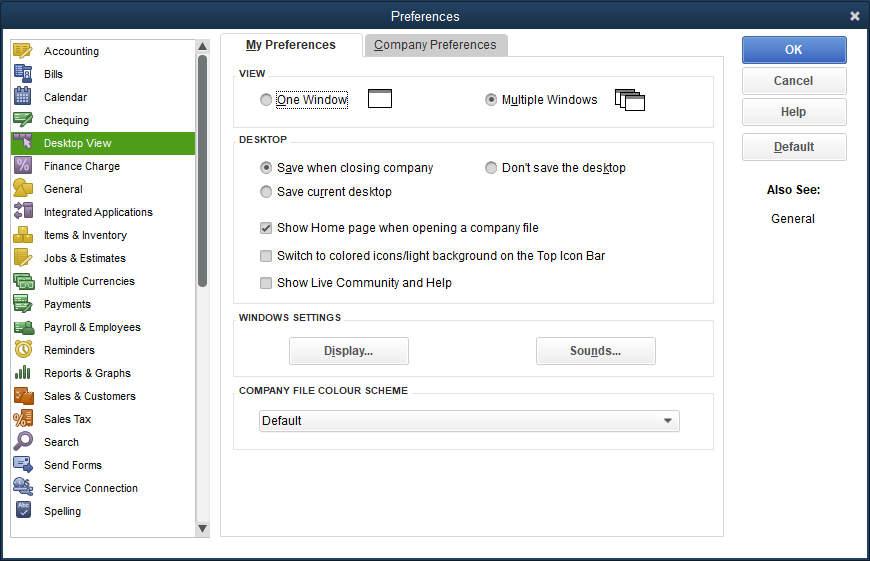
Click OK.
Step 4 — Turn off pop-up messages
Section titled “Step 4 — Turn off pop-up messages”Open Edit → Preferences, click General (1), then the My Preferences tab (2).
Tick Turn off pop-up messages for products and services. Leave Bring back all one time messages unticked: ticking it brings back every message you have already dismissed.
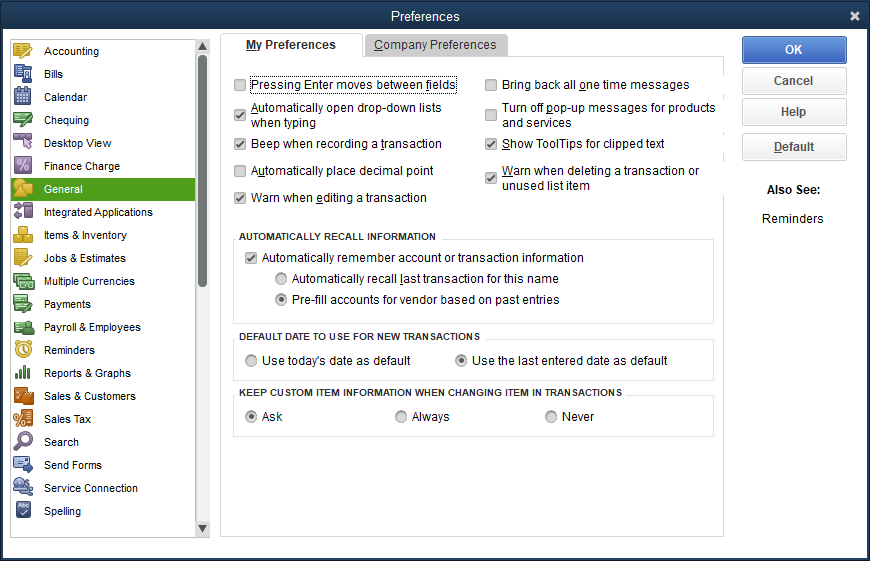
Click OK.
If you see something else: QuickBooks can still show a window of its own, such as a message about an update or a sign-in. Close it. Then check that the Web Connector can sync: see chapter 08.
You are ready when
Section titled “You are ready when”- Show Reminders List when opening a Company file is not ticked.
- Reminders you do not need are set to Don’t Remind Me.
- Show Home page when opening a company file is not ticked, and the desktop is not saved.
- Turn off pop-up messages for products and services is ticked.
- When you close and reopen the company file, no window is left open on top of QuickBooks. If Create New Users opens, tick Do not display this message in the future and click No, as in chapter 09, step 1.
- The file is back in multi-user mode if you switched it for step 2.
Next: chapter 11, sign in to Windows automatically.
Tested on QuickBooks Desktop Enterprise 24.0 Canada (34.0.4022.3401), Web Connector 34.0.10010.76, Windows 11 Pro 24H2 (26100.1742), on 2026-11-28.
Screenshots © Intuit Inc. Used with permission.