Disconnect QuickBooks Desktop
Disconnecting stops AutoBook and your QuickBooks Desktop company file from exchanging data. If transactions are still waiting to be sent, AutoBook tells you how many and lets you wait for the Web Connector to send them first. Nothing already recorded in QuickBooks is changed, and anything still waiting is kept and sent if you reconnect.
Before you disconnect
Section titled “Before you disconnect”Check whether anything is still waiting. If you want those transactions in QuickBooks, let the Web Connector run once more (or click Update Selected in the Web Connector) and disconnect after it finishes.
Disconnect
Section titled “Disconnect”- In AutoBook, open Settings → QuickBooks.
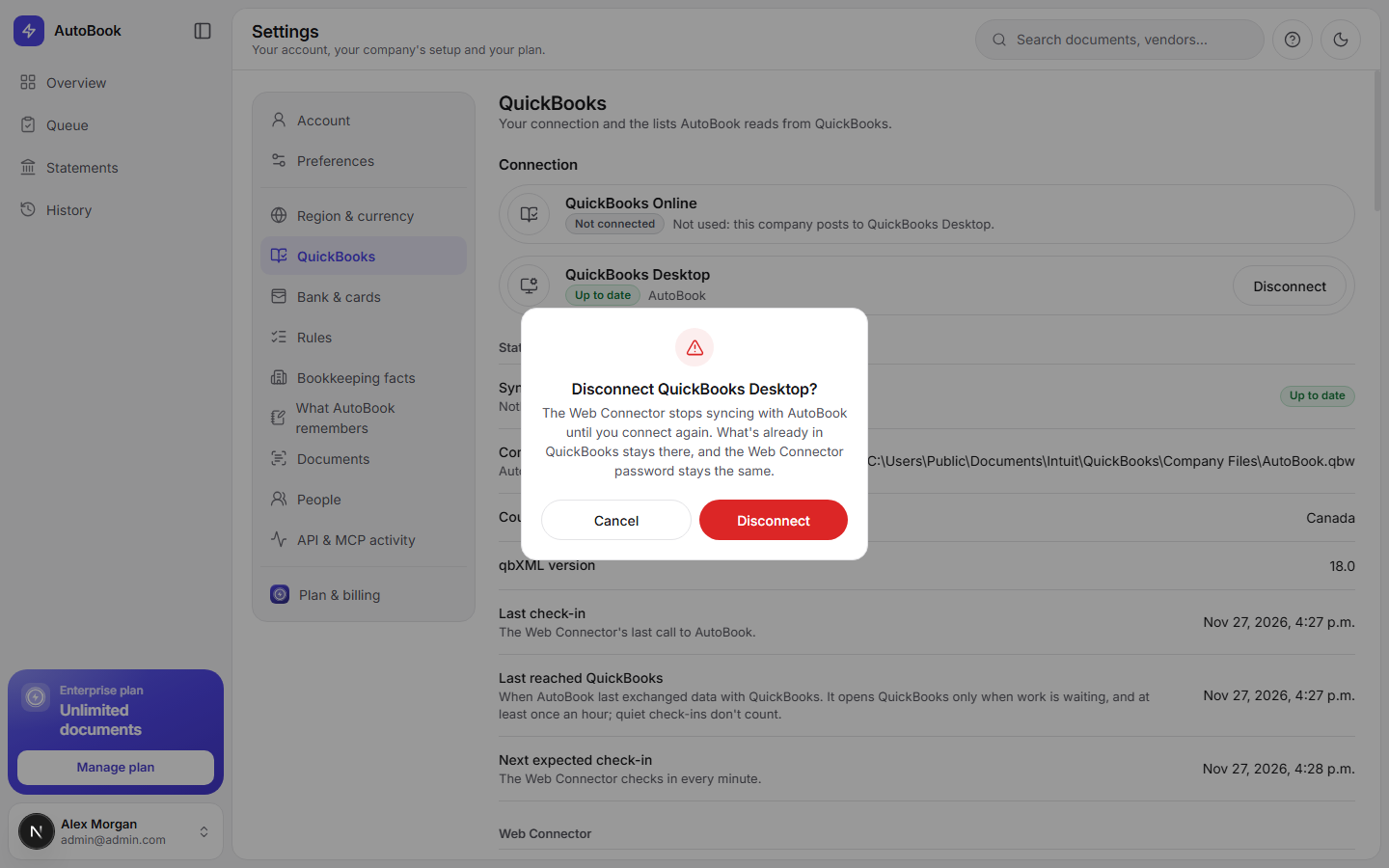
- On the QuickBooks Desktop card, choose Disconnect. AutoBook asks “Disconnect QuickBooks Desktop?” and explains that the Web Connector stops syncing until you connect again, that what is already in QuickBooks stays there, and that the Web Connector password stays the same. Choose Disconnect to confirm, or Cancel to keep the connection.
If transactions are still waiting, AutoBook shows a message such as:
3 transactions are still waiting to be sent to QuickBooks Desktop. Let the Web Connector finish, or disconnect anyway.
Screenshot
kb-disconnect-02-queued-warning(pending): the waiting-transactions message with its two choices. Imageimages/kb-disconnect-02-queued-warning.png, sidecarimages/kb-disconnect-02-queued-warning.json.
Choose to let the Web Connector finish, or disconnect anyway.
What happens after you disconnect
Section titled “What happens after you disconnect”| After disconnecting | |
|---|---|
| Transactions already in QuickBooks | Unchanged |
| Transactions still waiting | Kept in AutoBook, not sent. They are sent at the first sync after you reconnect |
| The Web Connector | Its next visit is refused. It reports a password or sign-in error for AutoBook; that is expected |
| AutoBook’s username and password for the Web Connector | Kept, so reconnecting does not need a new connection file |
| The company file AutoBook is connected to | Kept. Reconnecting connects to the same company file |
| AutoBook’s permission in QuickBooks | Unchanged. Remove it in QuickBooks if you want: see What AutoBook can access in your company file |
To stop the Web Connector trying, remove AutoBook’s entry from the Web Connector on that computer.
Reconnect later
Section titled “Reconnect later”Connect QuickBooks Desktop again in Settings → QuickBooks. If AutoBook’s entry is still in the Web Connector, the next sync resumes with the same company file and sends anything that was waiting. If you removed the entry, add it again from a newly downloaded connection file, as in the setup guide.
Related
Section titled “Related”- What AutoBook can access in your company file
- Move to a new computer or a new company file location
- How AutoBook connects to QuickBooks Desktop
Tested on QuickBooks Desktop Enterprise 24.0 Canada (34.0.4022.3401), Web Connector 34.0.10010.76, Windows 11 Pro (build 26100) · 2026-11-28: disconnect with nothing waiting, the Web Connector’s next visit, and connecting again. The waiting-transactions message and sending waiting work after reconnecting are not tested.