Enter the password and turn on Auto-Run
The Web Connector needs AutoBook’s password to sign in, and Auto-Run to check in by itself. This chapter sets both.
Before this chapter: AutoBook has access in QuickBooks (chapter 06). Takes about: 3 minutes. You need: the Web Connector password from AutoBook (chapter 02). It is not in the QWC file.
Step 1 — Paste the password
Section titled “Step 1 — Paste the password”In AutoBook, open Settings → QuickBooks, click Show password, then Copy (chapter 02, step 4).
Open the Web Connector. In the row whose Application starts with “AutoBook-”, click the Password cell. Paste or type the password, then press Tab to leave the cell (Enter may also work).
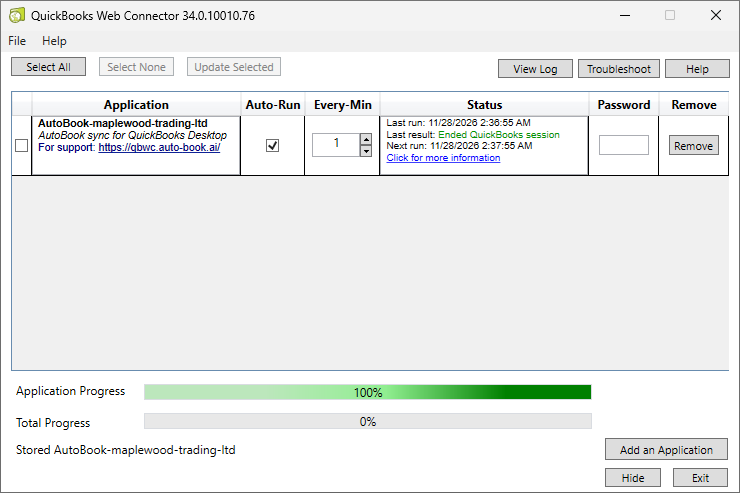
This picture is taken before anything is pasted. The cell hides what you type.
Step 2 — Save the password
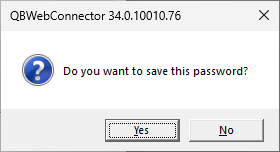
Section titled “Step 2 — Save the password”When you leave the cell, the Web Connector asks “Do you want to save this password?” Click Yes.
The line at the bottom of the window says Password Saved: that is the confirmation. The Password cell may show ******** at once, or stay empty for now, as in the picture in step 3; if it stays empty, it shows ******** later, for example after the first sync in chapter 08. Either way the password is saved.
If you see something else: if no question appears after Enter, click the Password cell again, paste the password and press Tab. If you click No, the Web Connector asks for the password again each time it checks in. Paste it again and press Tab, then click Yes. If you pasted the wrong text, use Regenerate in AutoBook for a new password and paste that.
Step 3 — Turn on Auto-Run and set Every-Min
Section titled “Step 3 — Turn on Auto-Run and set Every-Min”On the same row, check that Auto-Run (1) is ticked and Every-Min (2) is 1. The QWC file sets both, so they are usually right already; if not, tick Auto-Run and set Every-Min to 1. Every-Min is how often, in minutes, the Web Connector checks in with AutoBook.
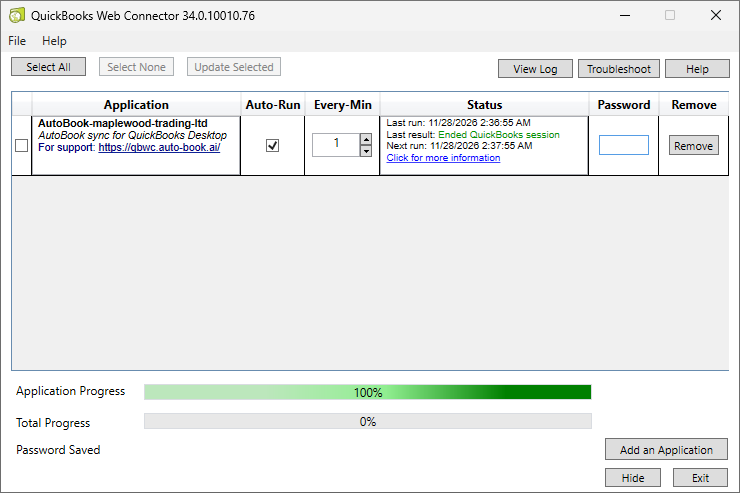
Keep the Web Connector running on the QuickBooks computer. Hide closes its window without stopping it.
You are ready when
Section titled “You are ready when”- The Web Connector said Password Saved after you clicked Yes.
- Auto-Run is ticked and Every-Min is 1.
Next: chapter 08, run the first sync.
Tested on QuickBooks Desktop Enterprise 24.0 Canada (34.0.4022.3401), Web Connector 34.0.10010.76, Windows 11 Pro 24H2 (26100.1742), on 2026-11-28.
Screenshots © Intuit Inc. Used with permission.