Import a bank or card statement
Add the statement in the chat with Add a file, or drop it on the conversation. AutoBook reads it, shows what needs a decision, then shows what Confirm will post. Nothing goes to QuickBooks until you press Confirm, and lines already in QuickBooks are skipped.
Before you start
Section titled “Before you start”- Connect QuickBooks for the company first, in Settings, QuickBooks: QuickBooks Online or QuickBooks Desktop. Without a connection AutoBook still reads the file and says “Connect QuickBooks in Settings to post this file.”
- Files AutoBook reads: a PDF or a picture of the statement (JPG, PNG or WebP), or an export from your bank’s website as CSV, OFX or QFX. Up to 25 MB per file.
- One statement per file, for one bank account or credit card.
Add the statement
Section titled “Add the statement”- Open the chat.
- Press Add a file (the paperclip next to the message box) and choose the statement, or drag the file onto the conversation (“Drop files to add them to this conversation”).
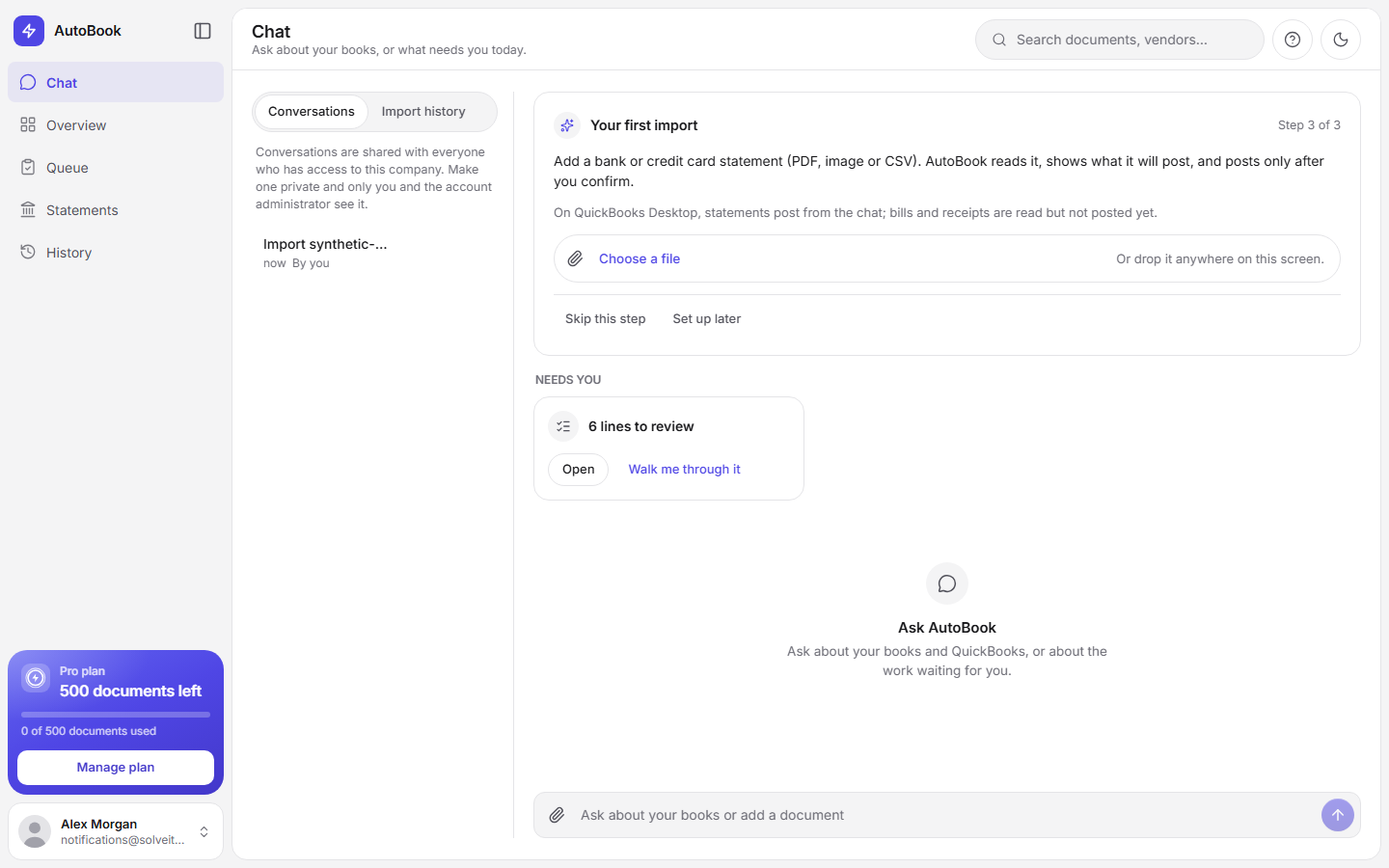
AutoBook shows “Adding” and the file’s name, then starts a conversation named “Import” and the file’s name. A card for the file appears in it, titled Statement and the file’s name, with the QuickBooks edition the company posts to. While the card says “Reading the file…”, AutoBook is reading it. Reading usually takes under a minute.
If the file can’t be added, the card says why: a file type AutoBook doesn’t read (“Add a PDF, JPG, PNG or WebP, or a CSV, OFX or QFX export”), or a file over 25 MB.
Check what was read
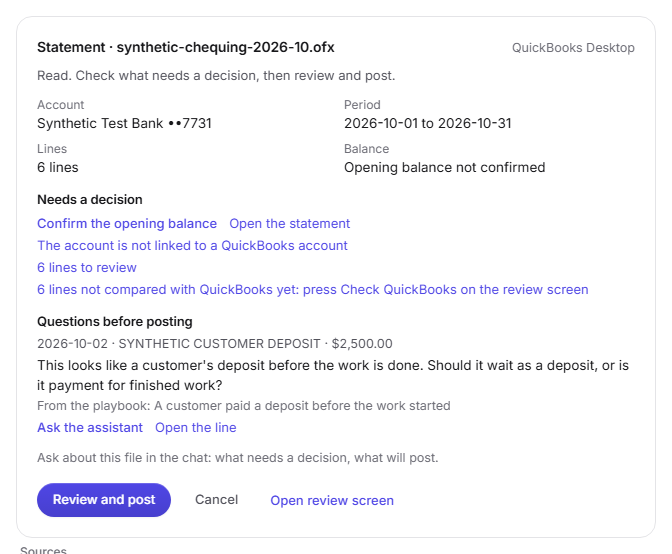
Section titled “Check what was read”When the card says “Read. Check what needs a decision, then review and post.”, it shows:
- Account: the bank account or card the statement is for.
- Period: its first and last dates.
- The number of lines.
- Balance: Balanced when the opening balance plus the lines equals the closing balance. “Does not balance” shows the difference. “Opening balance not confirmed” means the opening balance waits for you (see Needs a decision).
Needs a decision
Section titled “Needs a decision”The card lists, under Needs a decision, what has to be settled before those lines can post, and may show Questions before posting in a block of its own below the list. Ask about any of them in the chat, or press Open review screen to deal with them on the statement itself.
| On the card | What to do |
|---|---|
| Confirm the opening balance | The first statement of an account has no earlier statement to check it against. Press Open the statement to see the balances AutoBook read; that page marks them “Balance not verified”. Check the opening balance with your bank, then go back to the import’s conversation in the chat, press Confirm the opening balance, write in a sentence why it is right (at least 10 characters) and press Confirm. Your name and reason are saved with the statement, which then shows “Accepted with a reason”. |
| The statement does not balance | A line was read wrong or is missing. Open the review screen and compare the lines with the statement. |
| The account is not linked to a QuickBooks account | On the review screen, under Choose the QuickBooks account, open Search bank accounts (or Search credit card accounts) to see your QuickBooks accounts, or type part of the QuickBooks account’s name. Pick the one in the statement’s currency and press Save account. The list shows names only; the statement’s currency is at the top of the review screen (for example “Bank account ••7731 · CAD”) and in the hint above the search box. AutoBook remembers it for this account’s next statements. |
| Lines to review, lines without a category | Open the review screen. Choose a category for a line, or press Approve to keep AutoBook’s. To approve several at once, select them, press Approve in the bar that appears, and Approve again to confirm. The list shows the lines that need review, so an approved line leaves it; when all are approved it says “No lines shown”. Choose All above the list to see them again. |
| Matches to pick | AutoBook found more than one entry in QuickBooks that could be this line. Pick the right one on the review screen. |
| Lines on hold | AutoBook has a question about these lines. Answer in the chat or on the review screen. |
| Questions before posting | AutoBook asks about a line, such as a customer deposit received before the work is done. Press Ask the assistant to answer in the chat, or Open the line, keep or change the category, and press Approve. Approving the line with others at once answers it too. |
| Lines not compared with QuickBooks yet (QuickBooks Desktop) | Open the review screen and press Check QuickBooks; see Check what QuickBooks already has. |
| Match the CSV’s columns | A CSV whose layout AutoBook doesn’t know yet. On the screen that opens, say which column holds the date, the description and the amounts. The mapping is saved, so the next CSV from this account fills in by itself. |
A line that still needs a decision when you post is left out and waits. The rest can post. The review screen may also offer to save a rule for lines like one you decided; that is optional.
Check what QuickBooks already has
Section titled “Check what QuickBooks already has”Before anything posts, AutoBook compares each line with what is already in QuickBooks, so nothing is entered twice. On the review screen, the step Check what QuickBooks already has shows Check QuickBooks; press it. If AutoBook has already read QuickBooks for this period (for example for another statement), the step shows how many lines are already in QuickBooks and a Check again button instead; press Check again to compare with what QuickBooks holds now.
- On QuickBooks Desktop, AutoBook needs QuickBooks’ transactions for the statement’s period, a few days either side. If it hasn’t read them yet, it says “QuickBooks hasn’t been read for this period” and reads them at the next Web Connector run. Press Try again after that run.
- Until this check is done, the card lists the lines as not compared with QuickBooks yet, and Review and post shows them as waiting for AutoBook to compare them with QuickBooks.
Review and post
Section titled “Review and post”- Go back to the import’s card in the chat (its conversation, “Import” and the file’s name) and press Review and post. The card shows What Confirm will do: how many transactions it will create, and what it skips.
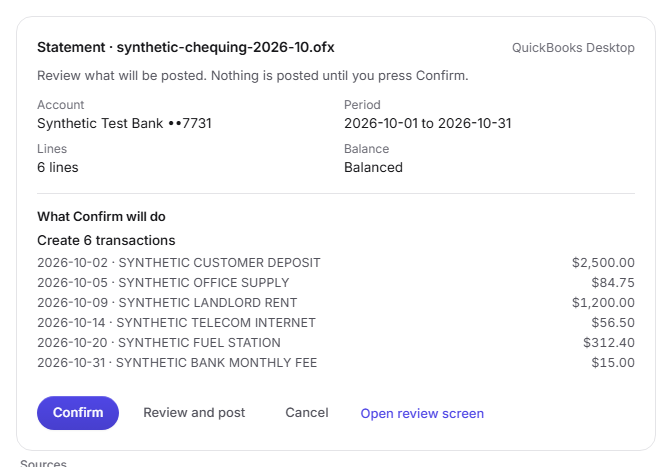
It skips lines that are already in QuickBooks, lines AutoBook already posted, the other side of a transfer it posts once, lines you excluded, and lines still waiting for a decision. 2. Press Confirm to post, or Cancel to stop. Cancelling posts nothing from this import.
What happens next depends on your QuickBooks:
- QuickBooks Desktop: the card says “Confirmed. These lines go to QuickBooks Desktop at the next Web Connector run.” and, below the list, how many lines are posted and how many are waiting for the next QuickBooks sync. Nothing more is needed from you.
- The card says “Confirmed. AutoBook is posting to QuickBooks.” while lines are still being sent, with how many are posted so far. If no count shows after a minute, reload the page.
- QuickBooks Online: the card shows how many have posted. While AutoBook’s posting to QuickBooks Online is not open for your company, the card says “Posting to QuickBooks Online opens when AutoBook’s production connection with Intuit is approved.”, and nothing is sent.
Once every line is written (on QuickBooks Desktop, after the Web Connector has run), the card ends at “Posted to QuickBooks.” When some lines did not post, it says “Partly posted”; Open review screen shows which and why. When your plan’s transactions for the period are used up, or the trial has ended, the card says so, and those lines post once there is room.
Import history
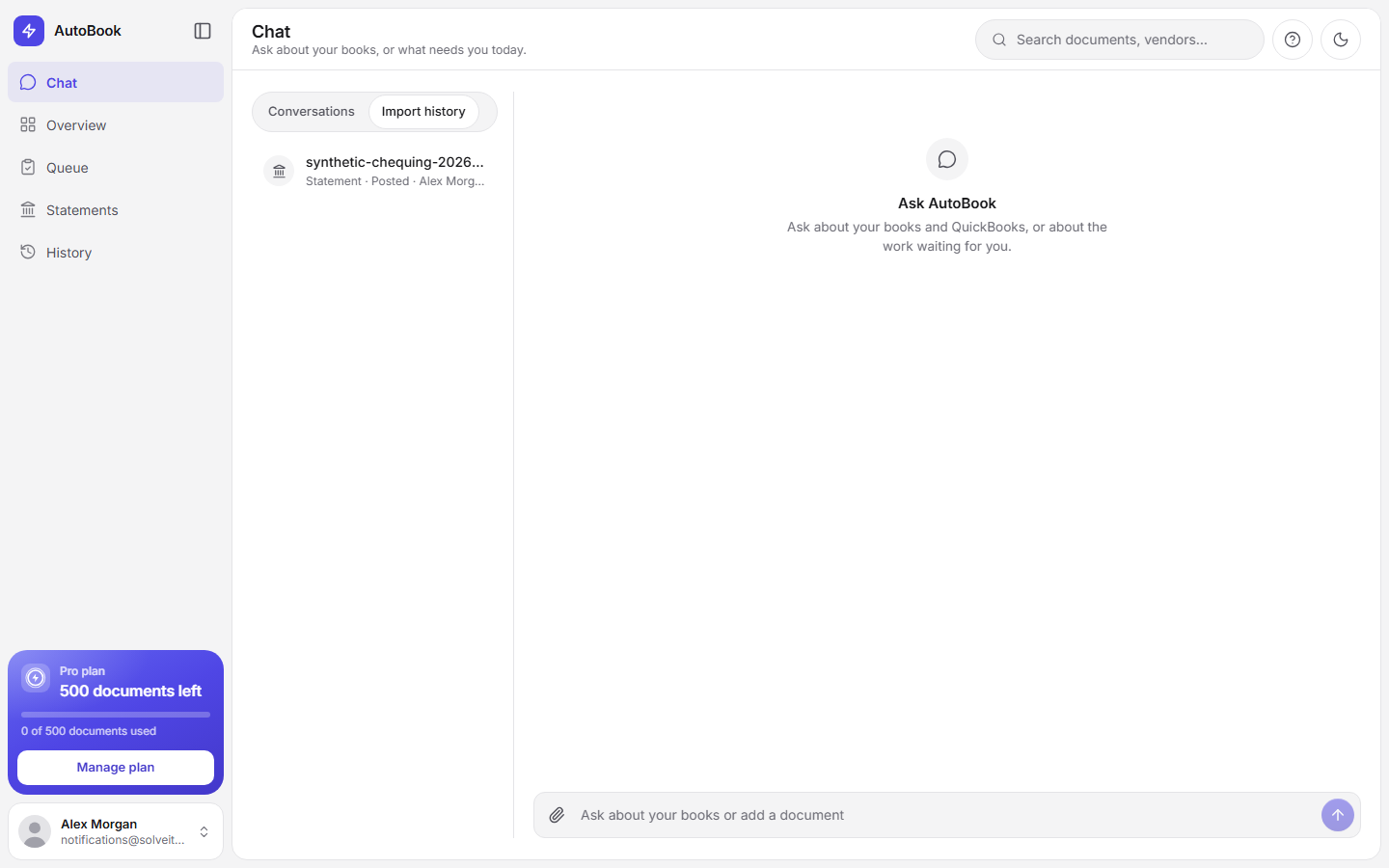
Section titled “Import history”Every file added in the chat is listed in Import history, next to the conversations, with its outcome: Waiting for you (something is left for you to do), Waiting for QuickBooks (confirmed on QuickBooks Desktop; the Web Connector writes the lines at its next run), Posted, Partly posted, Cancelled or Failed. Open a statement there to go to its review screen.
Tested on AutoBook 2bff0847, on 2026-11-28.