Check access in Integrated Applications
QuickBooks keeps the list of programs allowed to use your company file. This chapter confirms that AutoBook is on it with the right access. You can come back here any time access stops working.
Before this chapter: you gave AutoBook access (chapter 05). Takes about: 3 minutes. You need: QuickBooks open on your company file as Admin.
Step 1 — Find AutoBook in the list
Section titled “Step 1 — Find AutoBook in the list”In QuickBooks, choose Edit → Preferences. In the list on the left choose Integrated Applications (1), then the Company Preferences tab (2).
Your row (3) is named “AutoBook-” followed by your company. It has a tick under ACCESS and its STATUS reads Valid.
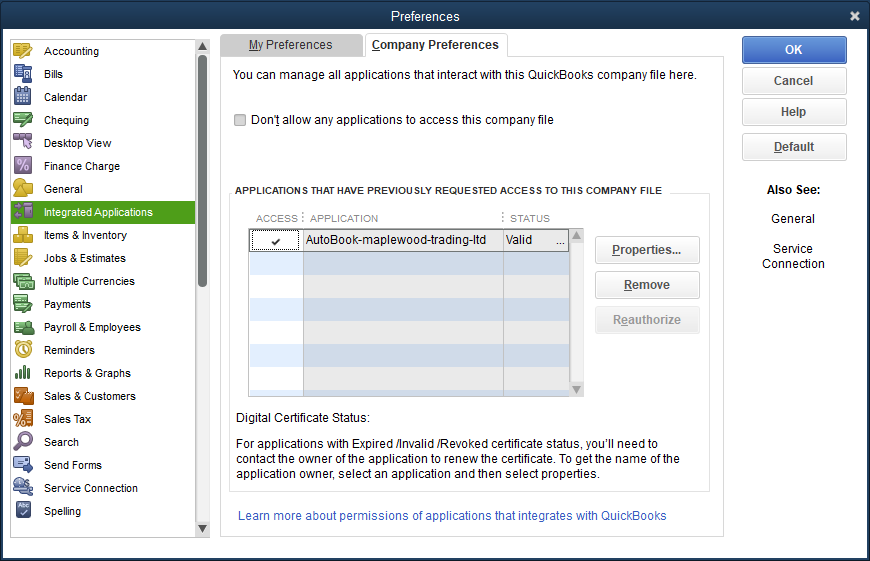
Leave Don’t allow any applications to access this company file unticked: when it is ticked, no program can use the file, AutoBook included.
If you see something else: if AutoBook is not in the list, or its STATUS is not Valid, the access was not given. Go back to chapter 04 and add the QWC file again, then answer the question as in chapter 05.
Step 2 — Open the row’s Properties
Section titled “Step 2 — Open the row’s Properties”Click your AutoBook row, then Properties…. In Access Rights, you should see:
- Allow this application to read and modify this company file ticked.
- Prompt before allowing access unticked. QuickBooks can show it greyed out, as in the picture, so it cannot be changed here.
- Allow access for this application even when QuickBooks isn’t running ticked.
- The personal data box (“Allow this application to access Social Insurance Numbers, customer credit card information, and other personal data”) unticked.
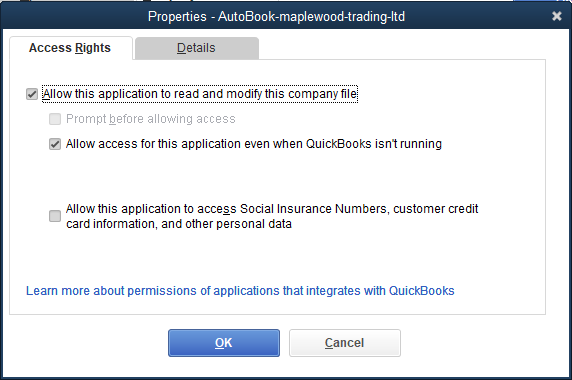
If a box you can change differs, tick or untick it to match, and click OK. If everything matches, click Cancel so nothing changes, then Cancel again in Preferences.
If you see something else: if Prompt before allowing access is ticked, QuickBooks asks for your approval each time AutoBook wants access, and syncs wait for that answer. If you can change the box, untick it and click OK. If it is ticked and greyed out, click Cancel, select the AutoBook row, click Remove, then OK. At the Web Connector’s next run QuickBooks shows the Application permission window again: answer Yes, always allow access; even when my QuickBooks isn’t running, as in chapter 05. The troubleshooting entry “QuickBooks asks before letting AutoBook in” explains this case. If Allow access for this application even when QuickBooks isn’t running is unticked, AutoBook can only sync while QuickBooks is open on your file.
You are ready when
Section titled “You are ready when”- AutoBook is in the list with a tick under ACCESS, and STATUS reads Valid.
- Its Access Rights match the list in step 2.
Next: chapter 07, enter the password and turn on Auto-Run.
Tested on QuickBooks Desktop Enterprise 24.0 Canada (34.0.4022.3401), Web Connector 34.0.10010.76, Windows 11 Pro 24H2 (26100.1742), on 2026-11-28.
Screenshots © Intuit Inc. Used with permission.