Check or install the Web Connector
The QuickBooks Web Connector is Intuit’s free program that carries data between QuickBooks and AutoBook. QuickBooks Desktop normally installs it with QuickBooks. This chapter checks that it is there and shows its version.
Before this chapter: QuickBooks Desktop is connected in AutoBook and the QWC file is downloaded (chapter 02). Takes about: 3 minutes. You need: the QuickBooks computer, signed in to Windows.
Step 1 — Open the Web Connector and read its version
Section titled “Step 1 — Open the Web Connector and read its version”Open the Web Connector from the Windows Start menu: type Web Connector and open the app named Web Connector. In QuickBooks Desktop Enterprise 24.0 for Canada there is no File → Update Web Services item, so always start it from the Start menu.
If you type QuickBooks Web Connector, the best match can be Download QuickBooks Web Connector, an app that downloads the Web Connector again. Do not choose it when the Web Connector is already installed: the installed app is the one named Web Connector.
When it opens, choose Help, then About QuickBooks Web Connector. A window named Product Information opens. The version is under the title, for example Version 34.0.10010.76.
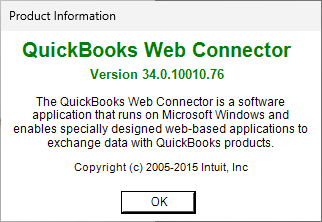
Click OK to close the window. You can leave the Web Connector open for the next chapter.
If you see something else: if Windows finds no app named Web Connector, it is not installed. See the next section.
If the Web Connector is not installed
Section titled “If the Web Connector is not installed”Download the Web Connector for your QuickBooks year from Intuit, and run the installer on the QuickBooks computer. Then open it from the Start menu as in step 1.
You are ready when
Section titled “You are ready when”- The app named Web Connector opens from the Start menu.
- Help → About QuickBooks Web Connector shows a Product Information window with a version number.
Next: chapter 04, add the QWC file.
Tested on QuickBooks Desktop Enterprise 24.0 Canada (34.0.4022.3401), Web Connector 34.0.10010.76, Windows 11 Pro 24H2 (26100.1742), on 2026-11-28.
Screenshots © Intuit Inc. Used with permission.