Open the company file as Admin in single-user mode
The first time AutoBook asks QuickBooks for access, QuickBooks only accepts the answer from the Admin user, with the company file in single-user mode. This chapter gets the file open that way.
Before this chapter: you have checked your QuickBooks and Windows versions (chapter 00). Takes about: 3 minutes. You need: the computer where QuickBooks Desktop and your company file are, and the QuickBooks Admin password if the file has one.
Step 1 — Sign in to the company file as Admin
Section titled “Step 1 — Sign in to the company file as Admin”Open QuickBooks Desktop, then open your company file.
If the file has an Admin password, a window named QuickBooks Desktop Login opens. It names your company and asks for the admin (owner) password of the company.
Click in the Password field, type the Admin password, and click OK. The password is case sensitive. Show next to the field lets you check what you typed.
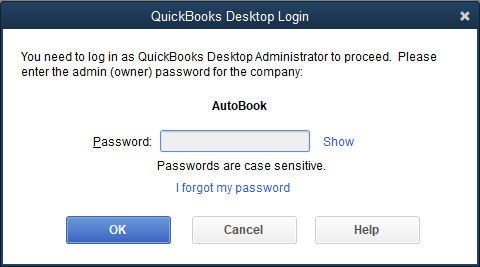
The company file opens.
If you see something else: if the window does not appear, the file has no Admin password and QuickBooks opens it straight away; go to step 2. If you do not know the password, use I forgot my password in the same window, or ask the person who set up QuickBooks.
Step 2 — Check that the file is in single-user mode
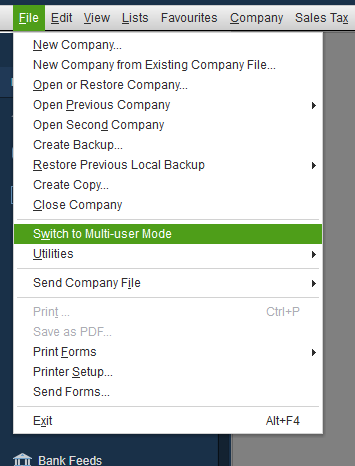
Section titled “Step 2 — Check that the file is in single-user mode”In QuickBooks, open the File menu and look at the menu item just above Utilities.
- If it says Switch to Multi-user Mode, the file is already in single-user mode. You are done: press Esc to close the menu.
- If it says Switch to Single-user Mode, choose it. QuickBooks switches the file to single-user mode.
Leave QuickBooks open on the company file. You will keep it open for the next chapters.
If you see something else: if Switch to Single-user Mode is missing or does nothing, someone else may be using the file, or you are not signed in as Admin. Sign in as Admin and try again.
You are ready when
Section titled “You are ready when”- QuickBooks is open on your company file, and you signed in as the Admin user.
- The File menu shows Switch to Multi-user Mode, so the file is in single-user mode.
Next: chapter 02, connect QuickBooks Desktop in AutoBook.
Tested on QuickBooks Desktop Enterprise 24.0 Canada (34.0.4022.3401), Web Connector 34.0.10010.76, Windows 11 Pro 24H2 (26100.1742), on 2026-11-28.
Screenshots © Intuit Inc. Used with permission.