Give AutoBook access in QuickBooks
QuickBooks asks you once whether AutoBook may use the company file. You answer “Yes, always allow access”, so AutoBook can sync when nobody has QuickBooks open on the file.
Before this chapter: QuickBooks shows the Application permission window (chapter 04). Takes about: 2 minutes. You need: to be signed in to QuickBooks as Admin, in single-user mode.
Step 1 — Choose “Yes, always allow access”
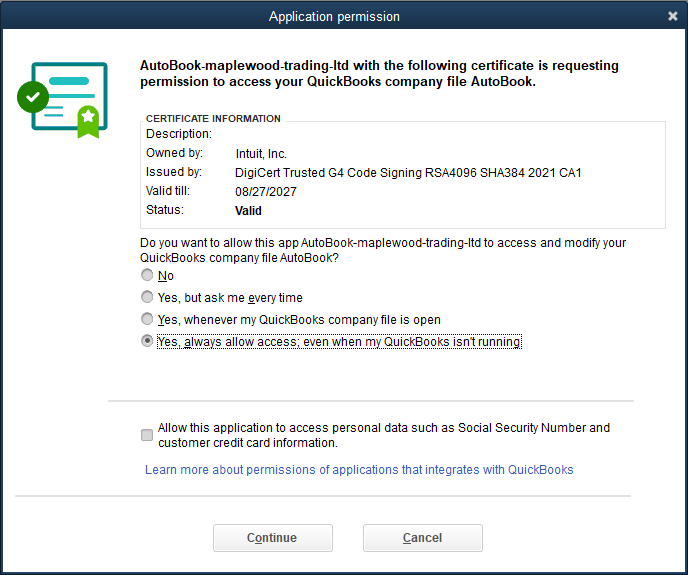
Section titled “Step 1 — Choose “Yes, always allow access””In the Application permission window, choose Yes, always allow access; even when my QuickBooks isn’t running.
QuickBooks at once shows a warning named Application permission confirmation. It says that by choosing this option you give the app access to QuickBooks data even when QuickBooks isn’t running, and asks: “Are you sure you want to give this app access to your data even when QuickBooks isn’t running?”
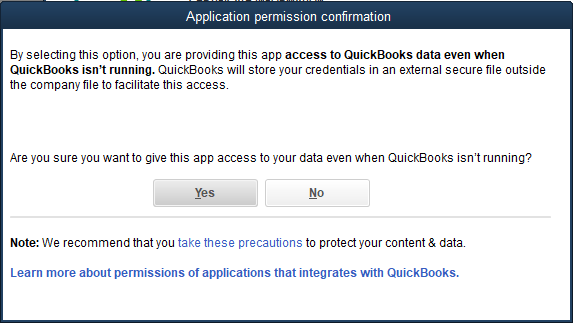
Click Yes. Read more about what this access allows in Access and security.
Step 2 — Click Continue
Section titled “Step 2 — Click Continue”You are back in Application permission, with Yes, always allow access; even when my QuickBooks isn’t running chosen (1). Leave Allow this application to access personal data… unticked. Click Continue (2).
Step 3 — Confirm
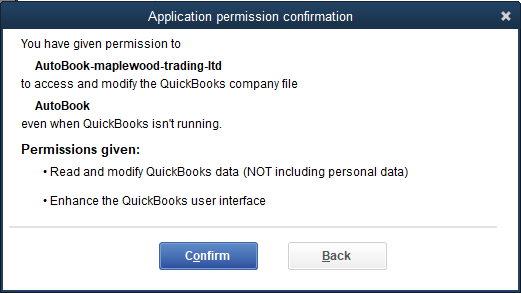
Section titled “Step 3 — Confirm”A window named Application permission confirmation says “You have given permission to”, then the application’s Name from chapter 04, “to access and modify the QuickBooks company file”, then your company file’s name, “even when QuickBooks isn’t running.” For example: “You have given permission to AutoBook-maplewood-trading-ltd to access and modify the QuickBooks company file AutoBook even when QuickBooks isn’t running.” It lists Permissions given: “Read and modify QuickBooks data (NOT including personal data)” and “Enhance the QuickBooks user interface”. Click Confirm.
If you see something else: right after Confirm, the Web Connector can show a window named Microsoft .NET Framework: “Unhandled exception has occurred in a component in your application. If you click Continue, the application will ignore this error and attempt to continue.” with “Index (zero based) must be greater than or equal to zero and less than the size of the argument list.”, and the buttons Details and Continue. This is a fault inside the Web Connector itself. It can appear when QuickBooks’ access question stayed open for a few minutes: in AutoBook’s tests it came in 2 of 6 setups where the question was answered about 3½ minutes after the QWC file was added, and never when it was answered within seconds. Click Continue, not Details. The same window can come back once more right after; click Continue again. The Web Connector keeps AutoBook listed, and the first sync follows about 2 minutes later. As a fallback, if AutoBook is not listed, close the Web Connector, open it again and add the QWC file again (chapter 04); the tests never needed it.
Once the Web Connector lists AutoBook, its row already has Auto-Run ticked and Every-Min set to 1: the QWC file sets them. The Web Connector can then try a scheduled run on its own, and the row’s Status can say Last result: Ended QuickBooks session although no password has been entered yet. That does not mean the connection works. AutoBook still says Never under Last check-in until the password is saved in chapter 07 and the first sync runs in chapter 08.
If you see something else: if you chose another option by mistake, you can change it later in chapter 06. If Continue stays grey, no option is chosen yet.
You are ready when
Section titled “You are ready when”- You clicked Yes, Continue and Confirm, in that order.
- QuickBooks shows no more questions about AutoBook.
- The Web Connector lists AutoBook.
Next: chapter 06, check access in QuickBooks preferences.
Tested on QuickBooks Desktop Enterprise 24.0 Canada (34.0.4022.3401), Web Connector 34.0.10010.76, Windows 11 Pro 24H2 (26100.1742), on 2026-11-28.
Screenshots © Intuit Inc. Used with permission.