How AutoBook connects to QuickBooks Desktop
AutoBook runs online, as a website; QuickBooks Desktop runs on your computer, such as the PC in your office. They are linked by Intuit’s free QuickBooks Web Connector, a small program on the same computer as QuickBooks. Every minute the Web Connector contacts AutoBook, collects the changes waiting for QuickBooks, has QuickBooks record them, and sends the results back. Changes therefore reach QuickBooks at the next visit, not instantly.
What is on your computer
Section titled “What is on your computer”| Part | What it does |
|---|---|
| QuickBooks Desktop, with your company file open | Holds your books. AutoBook reads from it and records transactions in it |
| QuickBooks Web Connector | Contacts AutoBook on a schedule and passes requests to QuickBooks |
| AutoBook’s entry in the Web Connector | Added once from the connection file (.qwc) you download from AutoBook. It holds AutoBook’s address, your company’s AutoBook username and how often to sync |
| AutoBook in QuickBooks’ Integrated Applications | The permission an Admin gives once, which lets the Web Connector work in your company file on AutoBook’s behalf |
Nothing else is installed. AutoBook has no program of its own on your computer.
What happens in a sync
Section titled “What happens in a sync”- At its scheduled time, the Web Connector signs in to AutoBook with your company’s username and the password you entered when you added AutoBook.
- AutoBook checks that QuickBooks has the same company file open as the one it connected to the first time. If it is a different file, AutoBook stops the sync and says so.
- AutoBook reads what it needs from the file: company details and settings, and at least once a day your accounts, vendors, items, sales tax codes and payment methods, so the choices you see in AutoBook match QuickBooks.
- AutoBook sends the transactions waiting to be recorded, one at a time. QuickBooks answers each one with the record it created, or with the reason it refused it.
- The Web Connector reports the sync as finished, and waits for its next scheduled time.
When nothing is waiting, the Web Connector’s visit ends at step 1 and QuickBooks is not touched. AutoBook still re-reads the company settings at least once an hour. A closed QuickBooks, a login window or an open dialog is therefore noticed only when work is waiting or the hourly refresh is due; the AutoBook card then says “QuickBooks not reached recently”.
Who contacts whom
Section titled “Who contacts whom”The Web Connector always starts the conversation, over an encrypted (HTTPS) connection from your computer to AutoBook. AutoBook never connects into your computer, so no firewall port has to be opened on your network. Outgoing HTTPS from the Web Connector must be allowed.
What this means for you
Section titled “What this means for you”- Keep the computer on and signed in to Windows, with QuickBooks and the Web Connector running. When the computer sleeps, restarts or waits at the Windows sign-in screen, nothing syncs; waiting changes stay in AutoBook and go at the next sync.
- Keep QuickBooks open on your company file. AutoBook currently relies on the file already being open.
- Expect a delay. A change waits for the Web Connector’s next visit. The download file sets a visit every minute. See How long a change takes to reach QuickBooks.
- A sync can be started at once with Update Selected in the Web Connector.
The Web Connector lists AutoBook with Auto-Run ticked, the Every-Min box that sets how often it visits, and the result of the last visit in the Status column.
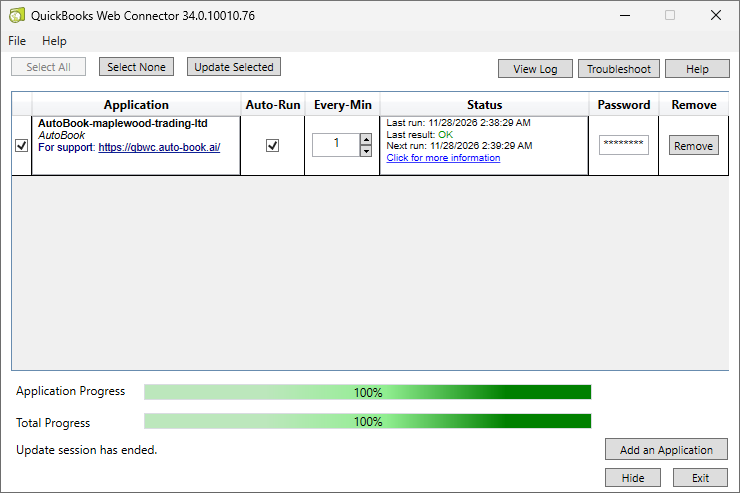
Screenshots © Intuit Inc. Used with permission.
Related
Section titled “Related”- How long a change takes to reach QuickBooks
- What happens to a change if the computer or QuickBooks stops mid-sync
- What AutoBook can access in your company file
- Limitations of the QuickBooks Desktop connection
- Supported QuickBooks Desktop versions
Tested on QuickBooks Desktop Enterprise 24.0 Canada (34.0.4022.3401), Web Connector 34.0.10010.76, Windows 11 Pro (build 26100) · 2026-11-18: one sync started with Update Selected, which read the company and its accounts, vendors, items and sales tax codes, and matched them against QuickBooks. Not yet tested: a scheduled sync and a sync that records transactions.