Move to a new computer or a new company file location
New computer: set up QuickBooks and the Web Connector on the new computer, add AutoBook to that Web Connector, give AutoBook permission again in QuickBooks, then remove AutoBook from the old computer’s Web Connector. Your AutoBook connection and its waiting transactions carry over.
New file location: AutoBook connects to one company file at one location. If the file is moved or renamed, AutoBook stops the sync and names both locations; open the file in QuickBooks and use Link to the company file that is open now in AutoBook to sync again.
Before you start
Section titled “Before you start”- Let a last sync finish on the old computer, so nothing is half-sent.
- Have a QuickBooks Admin available: QuickBooks asks for permission again on each new computer and for each Windows user.
Move to a new computer
Section titled “Move to a new computer”- On the new computer, install QuickBooks Desktop and open the company file at the same location as before (for a file on a shared drive, use the same path, see below).
- Install the Web Connector for your QuickBooks year (setup guide, Install the Web Connector,
qbd-setup-03-install-web-connector). - In AutoBook, download the connection file again and copy the password (setup guide, Connect in AutoBook,
qbd-setup-02-connect-in-autobook). - Add the connection file to the Web Connector, give permission in QuickBooks as Admin in single-user mode, enter the password, turn on Auto-Run and run the first sync (setup guide chapters 04 to 08).
- On the old computer, open the Web Connector and choose Remove in AutoBook’s row, so the two computers do not both sync.
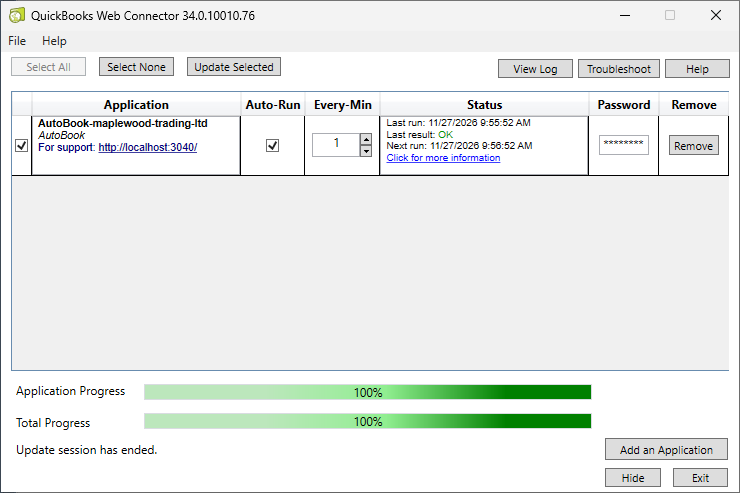
Screenshots © Intuit Inc. Used with permission.
Transactions waiting in AutoBook are sent at the first sync from the new computer.
A new Windows user on the same computer works the same way: QuickBooks asks each Windows user for permission once, so repeat step 4 signed in as that user.
Move or rename the company file
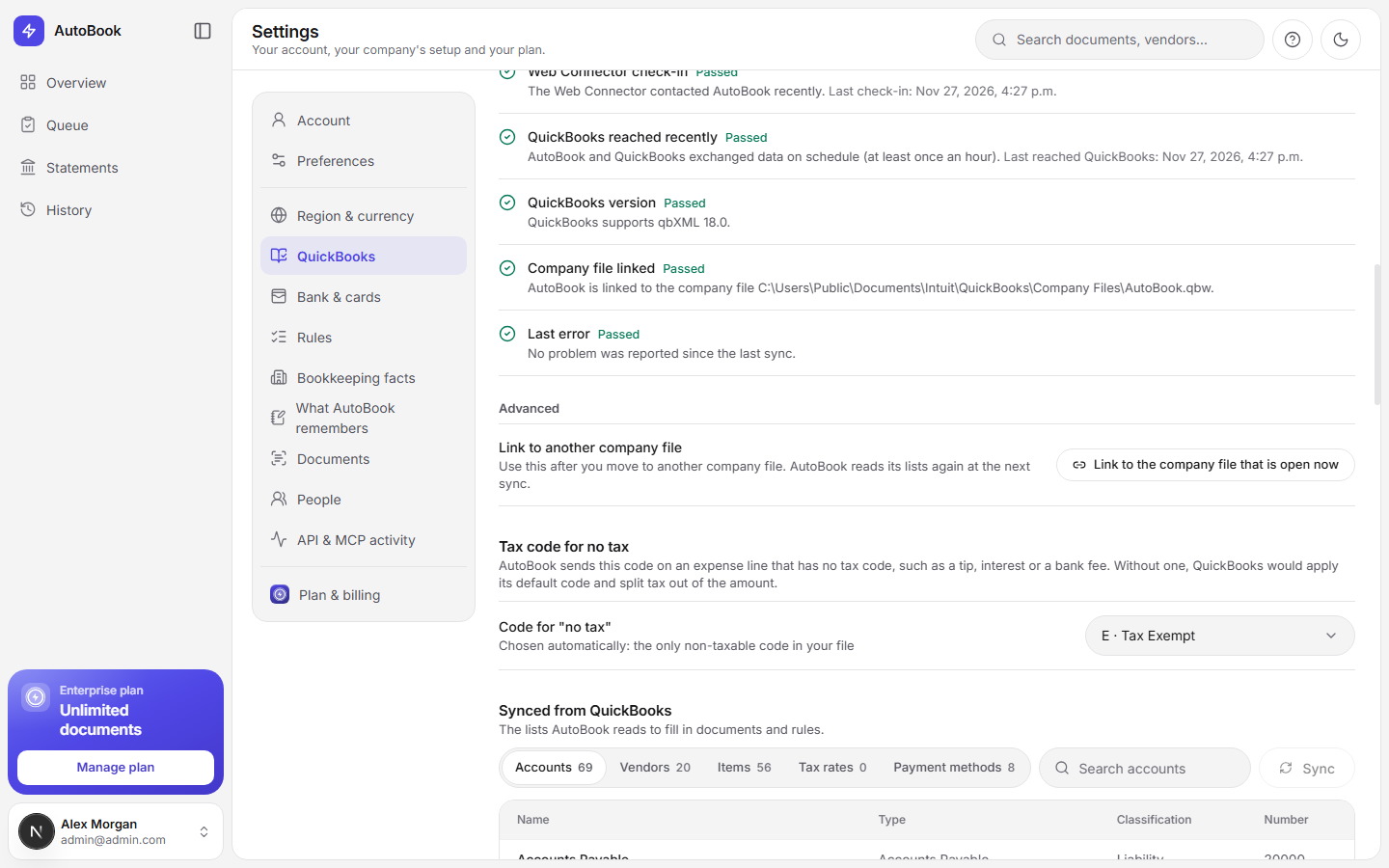
Section titled “Move or rename the company file”AutoBook remembers the location of the company file from the first sync. When QuickBooks has a file open at a different location, AutoBook stops before reading or recording anything. In Settings → QuickBooks, the QuickBooks Desktop card shows A different company file is open, with the message “QuickBooks has a different company file open than the one AutoBook is linked to. Nothing was read or written.”, and its Sync state names both locations. This protects you from recording transactions in the wrong file.
After you move the company file on purpose, open it in QuickBooks from its new location. Then, in AutoBook, open Settings → QuickBooks, and on the QuickBooks Desktop card choose Link to the company file that is open now (under Advanced, Link to another company file). AutoBook asks “Link to the company file that is open now?”: choose Link at next sync. AutoBook reads its lists again at the next sync.
AutoBook refuses the link in two cases:
- Work is still waiting for the old file. AutoBook says, for example, “1 QuickBooks Desktop job is still waiting or running on the linked company file. Let them finish or cancel them, then try again.” Waiting work cannot run while the other file is open: open the file from its old place again so it finishes, or cancel it, then link again.
- Entries of the old file are matched in AutoBook to statement lines or documents. AutoBook says that it cannot switch to another file. Then put the file back where it was, under its old name, and open it from there in QuickBooks. On the same card, under Setup checks, choose Run a test: at the next Web Connector run the test reaches QuickBooks and the card shows Up to date again. Without the test, the message stays until AutoBook next reaches QuickBooks (when work is waiting, and at least once an hour). If you cannot put the file back, contact support from the app’s Help screen.
Files on a shared drive
Section titled “Files on a shared drive”AutoBook compares the file’s location as written. A file opened as Z:\Books\Company.qbw (a mapped drive) and the same file opened as \\server\share\Books\Company.qbw look like two different files. Pick one way to open the file and keep using it on every computer. Connected apps work most reliably with the \\server\share\… form.
Related
Section titled “Related”- Disconnect QuickBooks Desktop
- What AutoBook can access in your company file
- Limitations of the QuickBooks Desktop connection
Tested on QuickBooks Desktop Enterprise 24.0 Canada (34.0.4022.3401), Web Connector 34.0.10010.76, Windows 11 Pro (build 26100) · 2026-11-28: the company file opened from a copy at another location, AutoBook’s message, and the link refused because the test company has matched entries, then the file opened from its old place again. Moving to a new computer repeats setup chapters that are tested on their own; the move itself, a link with nothing matched and the shared-drive behaviour are not tested.