Run the first sync
You run one sync by hand and check it in the Web Connector and in AutoBook. When both look right, the connection works.
Before this chapter: the password is saved and Auto-Run is on (chapter 07). Takes about: 3 minutes. You need: the Web Connector and QuickBooks open on your company file.
Step 1 — Tick AutoBook and click Update Selected
Section titled “Step 1 — Tick AutoBook and click Update Selected”In the Web Connector, tick the box at the left of the AutoBook row (1). Click Update Selected (2).
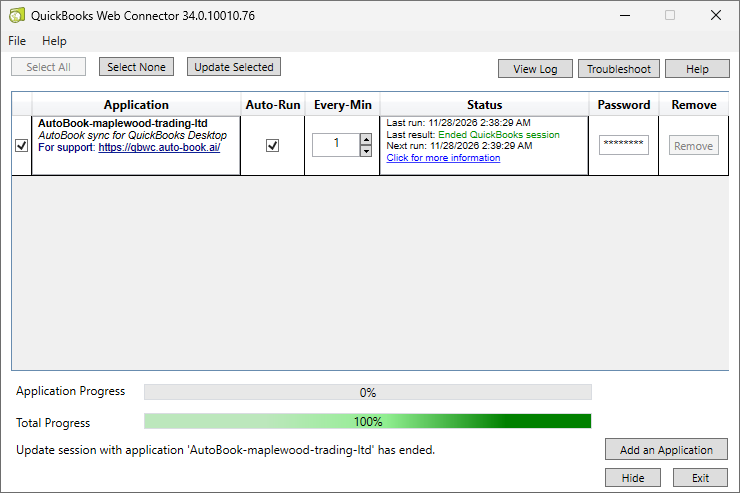
If Auto-Run starts a sync first, wait until it ends, then click Update Selected.
Step 2 — Read the status: OK or No data exchange required
Section titled “Step 2 — Read the status: OK or No data exchange required”When the sync ends, look at the Status column of your row. Last result reads one of these, and each one is a success:
- OK: the run finished.
- No data exchange required: nothing was waiting for QuickBooks. A first sync often has no data to exchange.
- Ended QuickBooks session: AutoBook sent or read something.
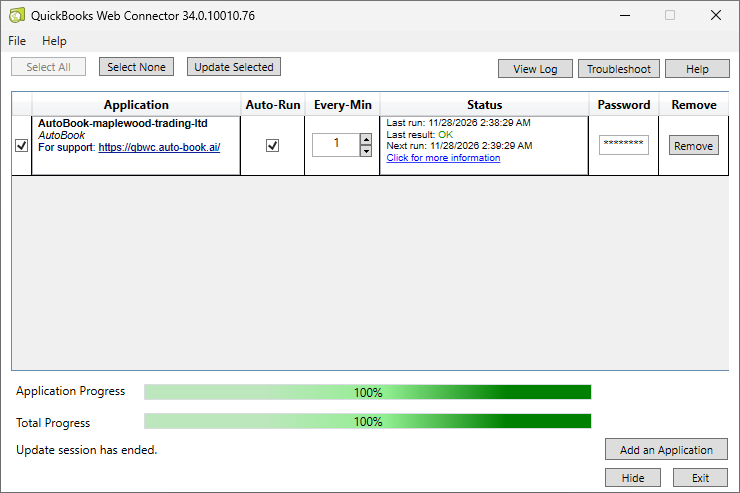
In the picture, Last run and Next run have a date and time. Right after Update Selected, Last run: can be blank and there can be no Next run line. That is normal: Last result is what tells you the sync worked.
If you see something else: if the status shows an error, click Click for more information in the row and keep the message. A rejected password means the saved password is wrong; repeat chapter 07. If QuickBooks asks about access, repeat chapter 05.
Step 3 — Check AutoBook
Section titled “Step 3 — Check AutoBook”In AutoBook, open Settings → QuickBooks and look at the QuickBooks Desktop card. Its sync state should now read Up to date, in green, with “Nothing is waiting for QuickBooks.”
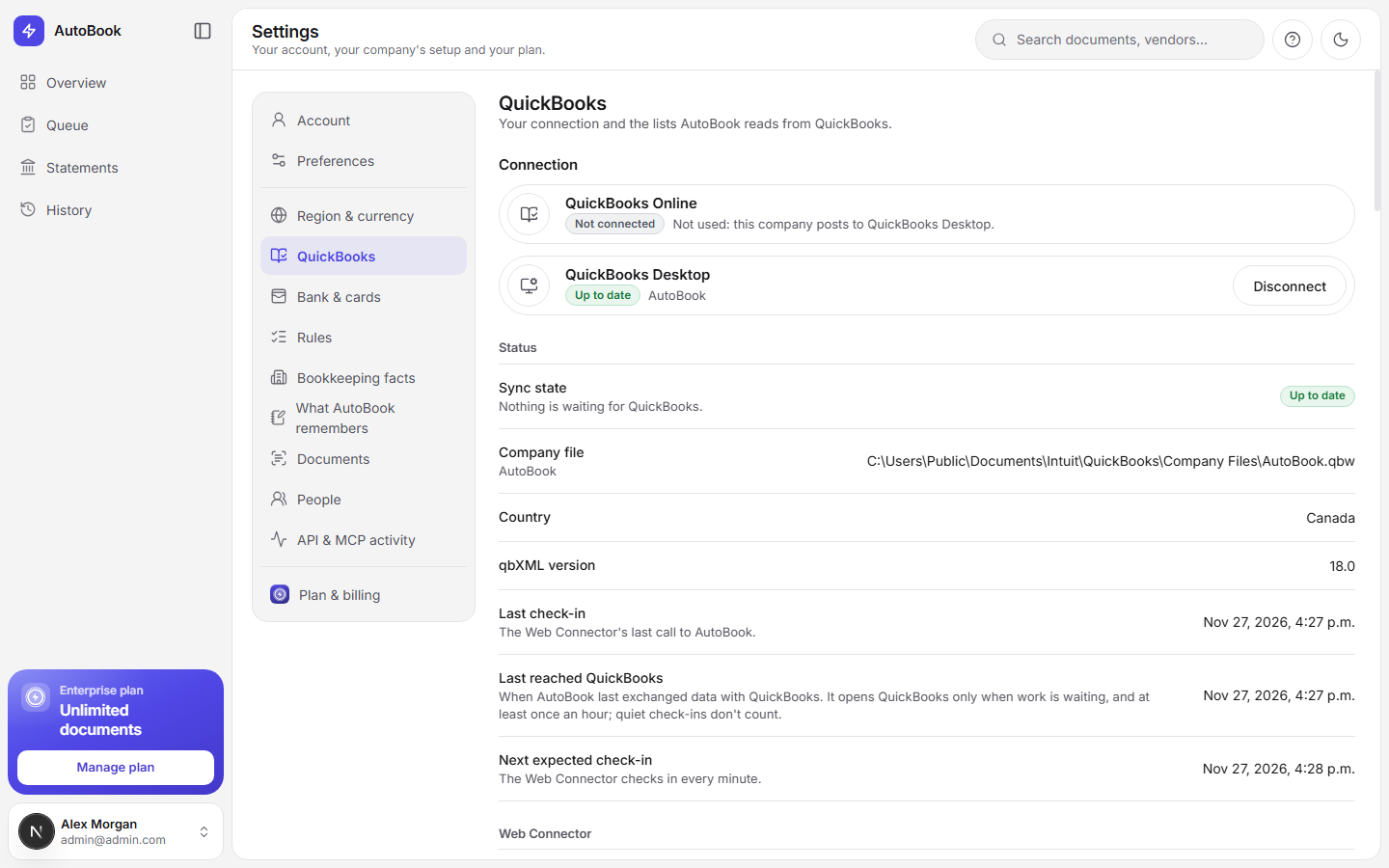
The Waiting for the first sync you saw after chapter 02 was expected until now.
The sync state follows AutoBook’s connection status. It can read:
| State | Colour | What it means |
|---|---|---|
| Up to date | green | Nothing is waiting, and AutoBook reached QuickBooks in the last few minutes (5 minutes, or 3 check-ins when the Web Connector calls less often). |
| Connected | grey | The Web Connector checks in and nothing is waiting, but AutoBook has not reached QuickBooks itself in the last few minutes. It says when it last did and when it checks next; see the note below. |
| Waiting for sync | blue | “N items are waiting for the next sync.” They go at the next check-in. |
| Syncing | green | A sync is running now. |
| The problem’s name, for example The Web Connector password is wrong | red or amber | What AutoBook found, what to do and, once published, a How to fix link. Red when AutoBook cannot reach QuickBooks, amber when the connection still works. |
| Not connected | grey | QuickBooks Desktop is not connected in AutoBook. |
Three rows under it tell you when things happened:
- Last check-in is the Web Connector’s last call to AutoBook.
- Last reached QuickBooks changes when AutoBook sends something to QuickBooks or reads from it, and at least once an hour. Quiet check-ins do not count.
- Next expected check-in is when the Web Connector should call next.
Under Status, Company file, Country and qbXML version now show what QuickBooks reported. Country must read Canada (chapter 00).
Under Setup checks, Web Connector check-in, which failed since chapter 02, now says Passed. QuickBooks reached recently is about the last data exchange with QuickBooks.
A quiet check-in does not open QuickBooks, so a closed QuickBooks, a login window or an open dialog shows up only when work is waiting, at the hourly check, or when you run a connection test (Setup checks → Connection test → Run a test). That is why the card turns from Up to date to Connected a few minutes after the last exchange: AutoBook no longer knows QuickBooks is reachable until it opens it again.
You are ready when
Section titled “You are ready when”- The Web Connector shows OK, No data exchange required or Ended QuickBooks session for AutoBook.
- The AutoBook card shows Up to date (or, a few minutes later, Connected in grey).
Next: your QuickBooks Desktop connection works. Chapter 09, switch back to multi-user mode, then chapters 10–16 keep QuickBooks and Windows ready so syncs keep running. See also What AutoBook can do with QuickBooks Desktop.
Tested on QuickBooks Desktop Enterprise 24.0 Canada (34.0.4022.3401), Web Connector 34.0.10010.76, Windows 11 Pro 24H2 (26100.1742), on 2026-11-28.
Screenshots © Intuit Inc. Used with permission.