Connect QuickBooks Desktop in AutoBook
In AutoBook you start the connection, download the QWC file that tells the Web Connector where AutoBook is, and find the password the Web Connector will need.
Before this chapter: QuickBooks is open on your company file as Admin, in single-user mode (chapter 01). Takes about: 5 minutes. You need: an AutoBook admin sign-in, on the QuickBooks computer if you can. The QWC file has to end up on that computer.
Step 1 — Find Settings and open the QuickBooks Desktop card
Section titled “Step 1 — Find Settings and open the QuickBooks Desktop card”Settings is not in the left navigation (Overview, Queue, Statements, History). To open it, click your name and email at the bottom of the left sidebar: a menu opens above it. Choose Settings. On a phone, tap Settings in the bar at the bottom of the screen.
In the Settings list, choose QuickBooks. Under Connection, find the card named QuickBooks Desktop.
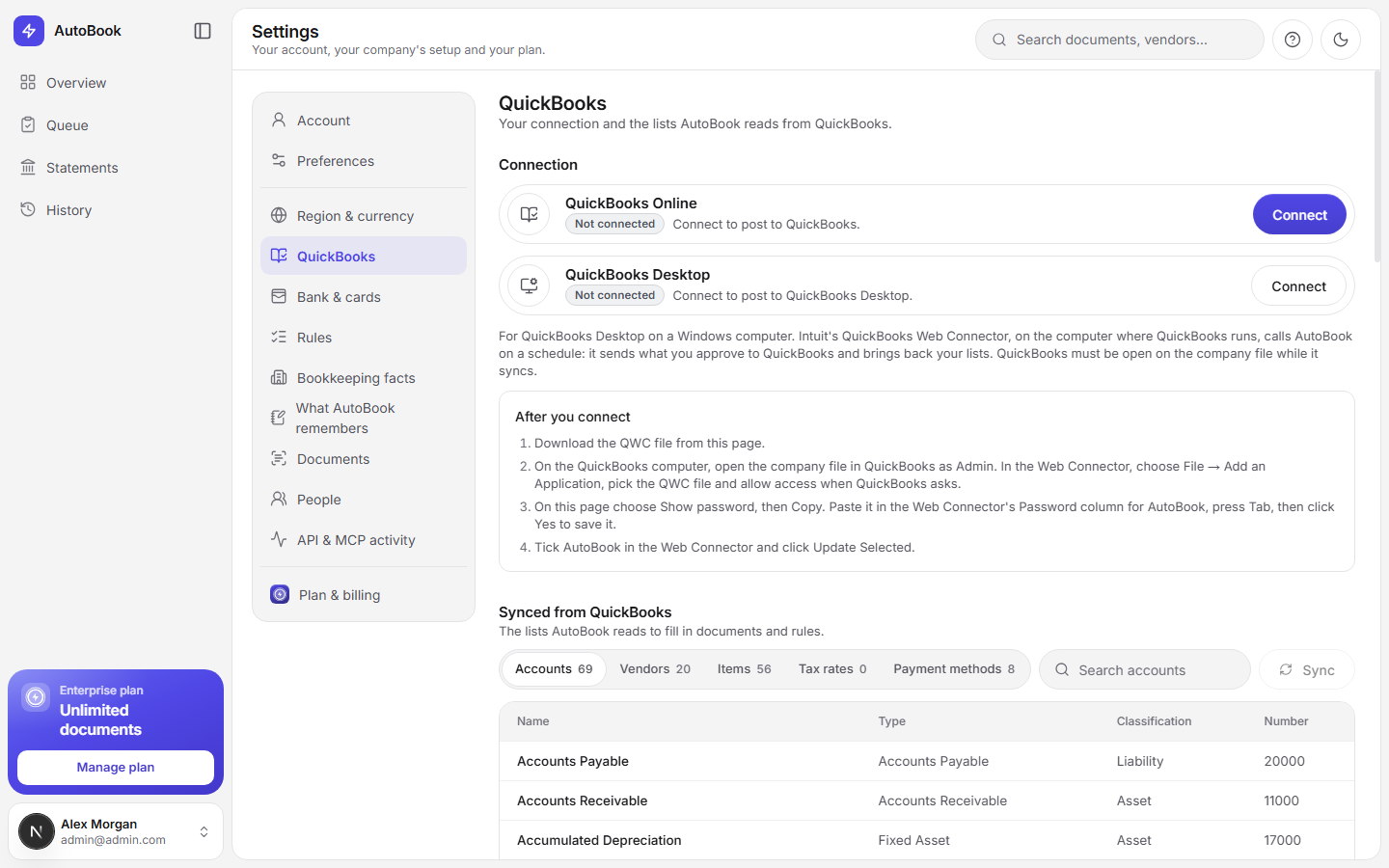
Below the card, a box named After you connect lists the same steps this guide follows.
If you see something else: if you cannot find QuickBooks in the Settings list, or Connect is not offered, you are not an admin of the company. Ask an AutoBook admin.
Step 2 — Click Connect
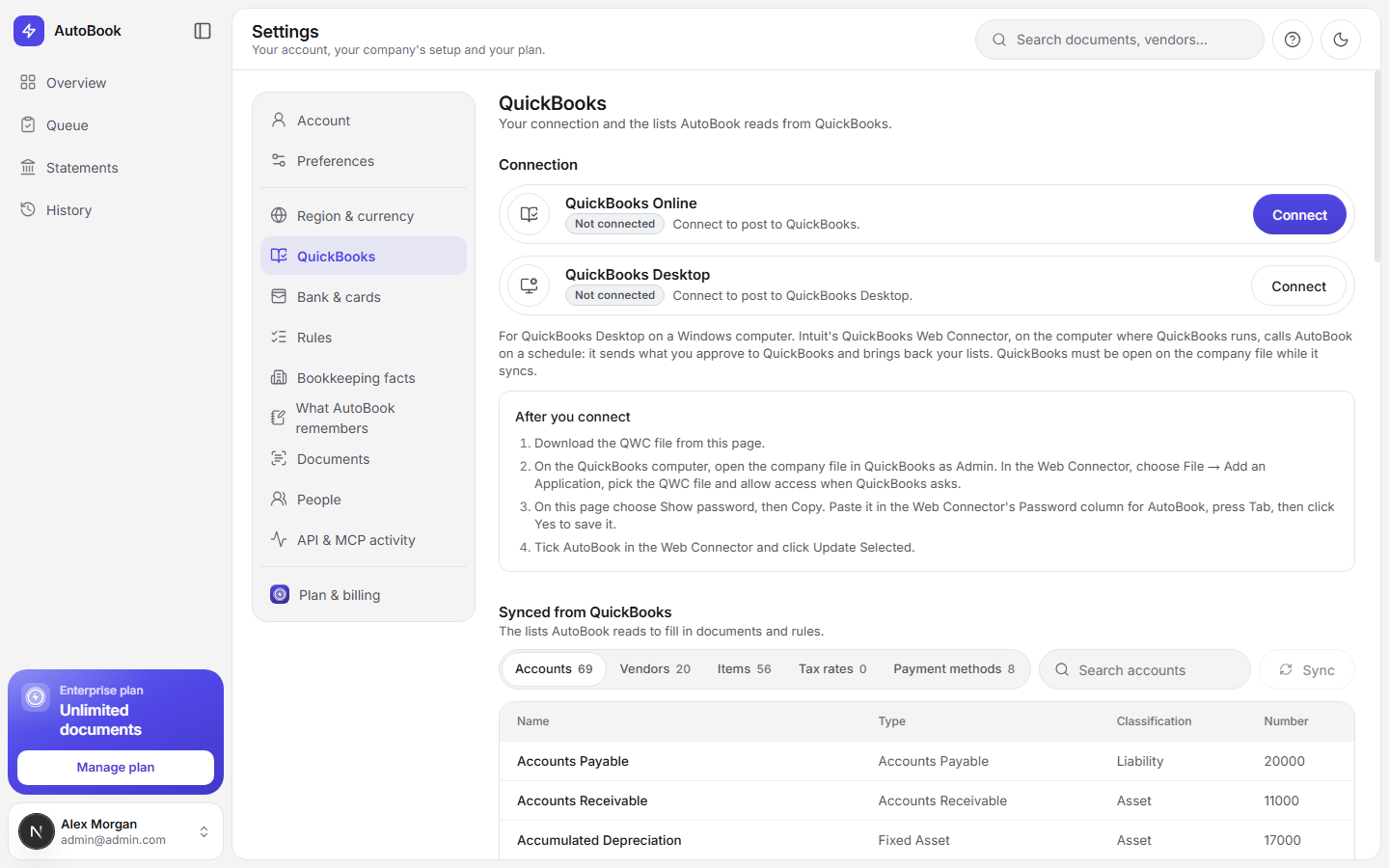
Section titled “Step 2 — Click Connect”On the QuickBooks Desktop card, which says Not connected, click Connect.
AutoBook shows the message “QuickBooks Desktop connected. Download the QWC file to finish the setup.” The card now says Waiting for the first sync, in red, and shows a Disconnect button. This is expected: nothing has reached AutoBook from QuickBooks yet. It changes at the end of chapter 08.
Until you download the QWC file in step 3, the Sync state under Status says “QuickBooks Desktop is connected in AutoBook, but the Web Connector has not called AutoBook yet. The QWC file has not been downloaded since the connection was made, so it is most likely not added to the Web Connector yet.” This is expected too: step 3 is the download.
Under the card, a box named Finish the setup on the QuickBooks computer lists four steps:
- “Download the QWC file from this page.”
- “On the QuickBooks computer, open the company file in QuickBooks as Admin. In the Web Connector, choose File → Add an Application, pick the QWC file and allow access when QuickBooks asks.”
- “On this page choose Show password, then Copy. Paste it in the Web Connector’s Password column for AutoBook, press Tab, then click Yes to save it.”
- “Tick AutoBook in the Web Connector and click Update Selected.”
This guide takes you through the same steps, in chapters 02 to 08. The box stays until the Web Connector first calls AutoBook.
Below the box, Status lists Sync state, Company file, Country, qbXML version, Last check-in, Last reached QuickBooks and Next expected check-in. Until the Web Connector calls AutoBook, Last check-in and Last reached QuickBooks say Never, and Next expected check-in says Not known yet. This is true even if the company was connected before: connecting again starts these times over. Company file, Country and qbXML version depend on whether this company was connected to QuickBooks Desktop before:
- First connection: they say Known after the first sync.
- Connected before: they already show what QuickBooks reported the last time, for example Country Canada and qbXML version 18.0. AutoBook keeps them from the earlier connection.
Lower on the card, Setup checks lists the connection test and AutoBook’s checks of the connection, each with Passed, Warning, Failed or Not checked yet. Web Connector check-in says Failed, “The Web Connector has not contacted AutoBook yet.”, until the first sync in chapter 08. This is expected. If the company was connected before, Connection test can still show the result of an earlier test, such as “Test passed …”.
Above the QuickBooks Desktop card, the QuickBooks Online card now says “Not used: this company posts to QuickBooks Desktop.” A company posts to one edition of QuickBooks at a time.
Step 3 — Download the QWC file
Section titled “Step 3 — Download the QWC file”Under Web Connector, find QWC file. Click Download QWC file. Save the file on the QuickBooks computer, where you can find it again: you add it to the Web Connector in chapter 04.
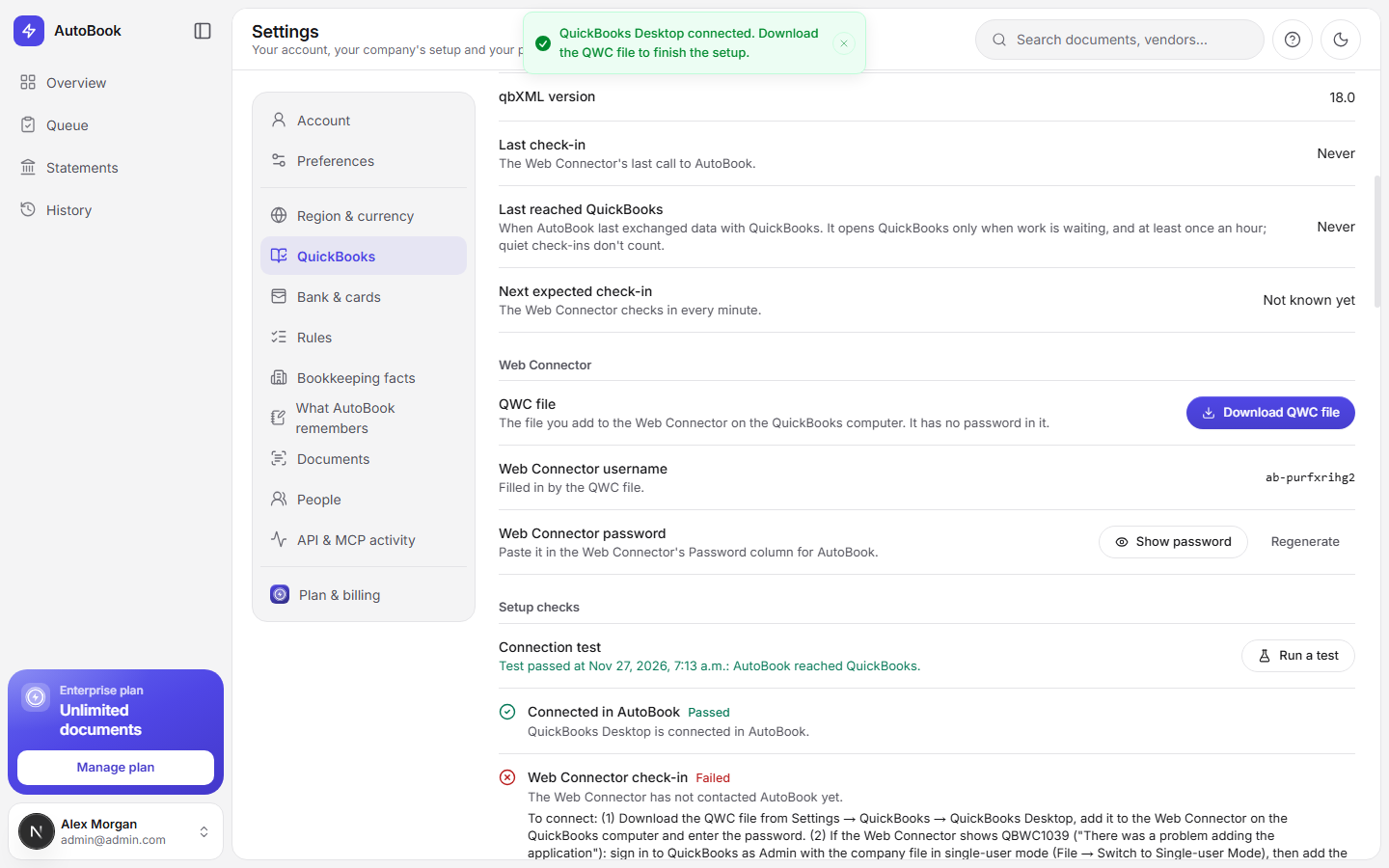
AutoBook shows the message “QWC file downloaded. Open it in the Web Connector on the QuickBooks computer.”
Shortly after, the Sync state under Status changes to “QuickBooks Desktop is connected in AutoBook, but the Web Connector has not called AutoBook yet. The QWC file was downloaded after the connection was made, so it was most likely added and the add failed in the Web Connector before reaching AutoBook.” The card still says Waiting for the first sync, and the steps under Web Connector check-in in Setup checks change order. This is expected while you set up: AutoBook cannot tell that you have not added the file yet. Nothing has failed. Carry on with chapters 03 to 08; the message goes away at the first sync in chapter 08.
The QWC file has no password in it. The Web Connector username is filled in by the QWC file, so you do not type it.
Step 4 — Find the Web Connector password
Section titled “Step 4 — Find the Web Connector password”Further down, the Web Connector password row says “Paste it in the Web Connector’s Password column for AutoBook.”
You will need the password in chapter 07. At first the row shows only Show password and Regenerate: there is no Copy yet. Choose Show password, then Copy. Show password puts the password on screen with Copy and Hide next to it. If you think someone else has seen it, Regenerate makes a new one; paste the new one in the Web Connector.
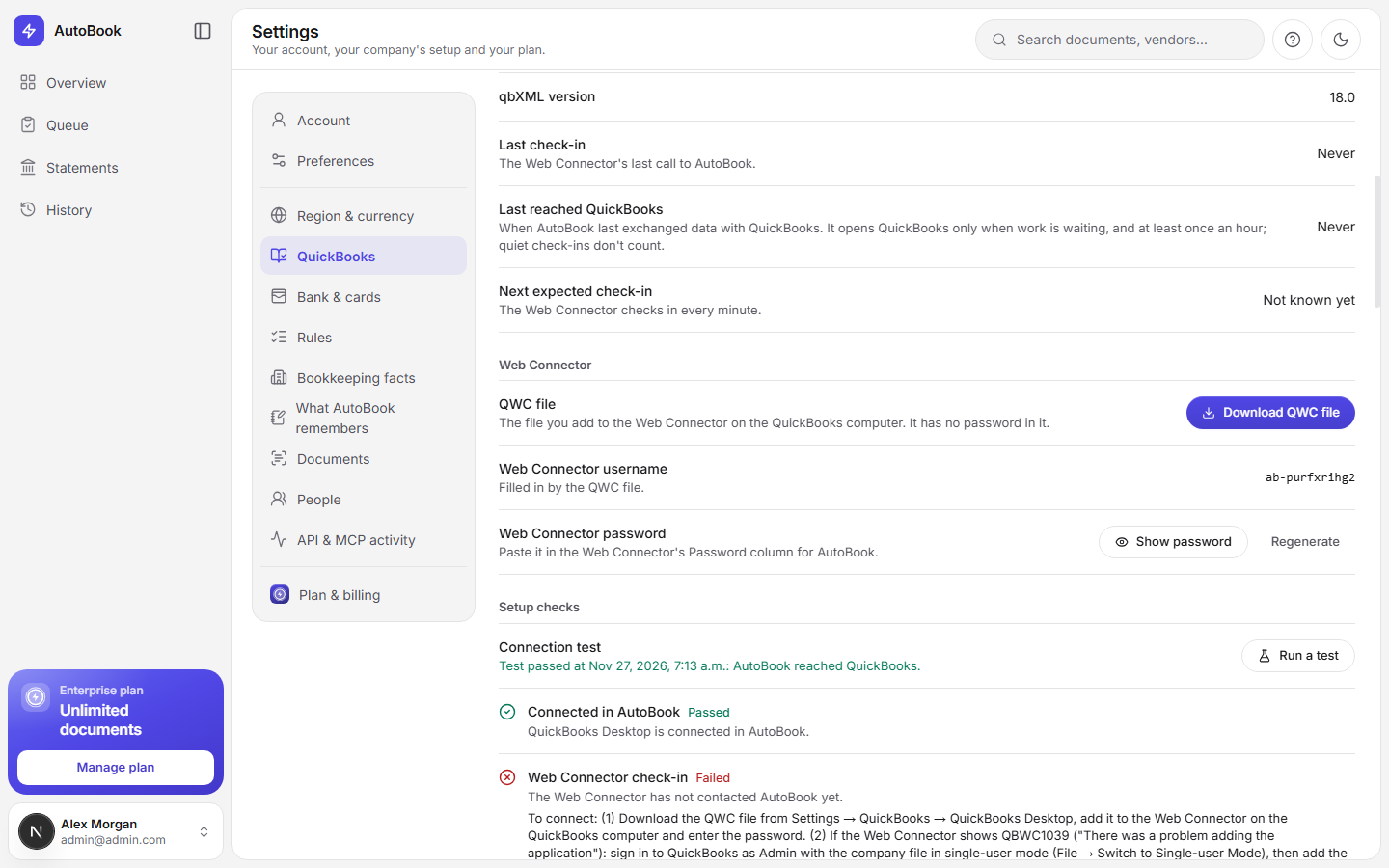
This picture keeps the password hidden. Keep yours private: it lets the Web Connector sign in to AutoBook for your company.
If you see something else: if the card shows Disconnect instead of Connect, QuickBooks Desktop is already connected for this company. Go on to step 3 and download the QWC file again.
You are ready when
Section titled “You are ready when”- The QuickBooks Desktop card in AutoBook shows Disconnect and, for now, Waiting for the first sync, with Finish the setup on the QuickBooks computer under it.
- The QWC file is saved on the QuickBooks computer.
- You know where to find Show password, and that Copy appears after it.
Next: chapter 03, check or install the Web Connector.
Tested on QuickBooks Desktop Enterprise 24.0 Canada (34.0.4022.3401), Web Connector 34.0.10010.76, Windows 11 Pro 24H2 (26100.1742), on 2026-11-28.