Go back to multi-user mode
You opened the company file in single-user mode so the Admin could give AutoBook access. If other people work in the file, this chapter puts it back to multi-user mode.
Before this chapter: the first sync worked (chapter 08). Takes about: 2 minutes. You need: QuickBooks open on your company file, and the Admin user if the file has a password.
Do this chapter last. Stay in single-user mode until chapters 05 to 08 are done. The first time AutoBook is given access, QuickBooks only accepts it in single-user mode, from the Admin user. If you ever have to repeat chapter 05, switch the file back to single-user mode first. Step 2 of chapter 10 also needs single-user mode for a moment; that chapter says how.
Before step 1 — Pause Auto-Run for AutoBook
Section titled “Before step 1 — Pause Auto-Run for AutoBook”While the file switches mode, the Web Connector should not sign in to QuickBooks. In the Web Connector, untick Auto-Run in the AutoBook row (chapter 07 is where you ticked it). While it is unticked, Every-Min shows 0 and the line at the bottom of the window says “Scheduling has been disabled for AutoBook-”, then the rest of AutoBook’s row name.
Tick Auto-Run again after step 2. Every-Min goes back to 1.
Step 1 — Switch the file to multi-user mode
Section titled “Step 1 — Switch the file to multi-user mode”In QuickBooks, open the File menu. While the file is single-user, the menu shows Switch to Multi-user Mode, just under Close Company. Click it.
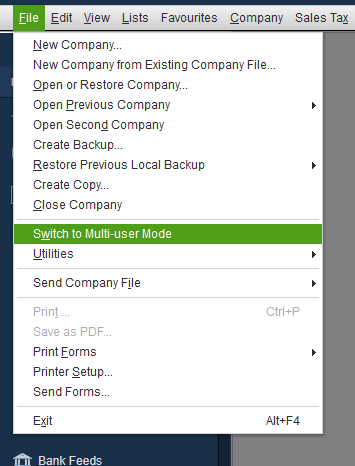
QuickBooks reopens the file in multi-user mode. The title bar at the top of the QuickBooks window then shows (multi-user) after the version, for example “AutoBook - Intuit QuickBooks Enterprise Solutions 24.0(multi-user)(Admin)”.
QuickBooks may then show a window named Create New Users: “You have opened the company file in multi-user mode. For additional users to access this company file, you must first set them up as users. Do you want to set up users now?” It has a box Do not display this message in the future and the buttons Yes and No. Tick Do not display this message in the future, then click No, unless you want to set up QuickBooks users now (then click Yes). Without the tick, the window comes back each time the file opens in multi-user mode, and an open window in QuickBooks can stop the sync.
Never close Create New Users with the X in its corner. On the QuickBooks test machine (QuickBooks Desktop Enterprise 24.0 Canada, 2026-11-23), closing it that way ended in “QuickBooks - Unrecoverable Error” and QuickBooks closed.
Screenshot
setup-09-multi-user-03-title-bar(pending): the QuickBooks title bar of a file open in multi-user mode.
If you see a Warning instead: “The QuickBooks Administrator is editing the user information for user -Admin-. You can either try to log in as a different user or try again later.” with only OK, and QuickBooks has closed the company file. This can happen when Auto-Run was left ticked (see Before step 1). Click OK, wait a minute, then open the company file again (File → Open Previous Company) and sign in as Admin. If the title bar does not show (multi-user), do step 1 again.
If you see something else: if the File menu has no Switch to Multi-user Mode, the file is probably already in multi-user mode. Look at the title bar for (multi-user). If you work alone, you can stay in single-user mode; AutoBook works in both.
Step 2 — Host the file, on the computer that has it
Section titled “Step 2 — Host the file, on the computer that has it”Other people can open the file only if the computer that holds it hosts it. Do this on that computer, not on the others.
Open File → Utilities and look at the hosting entry:
- Stop Hosting Multi-User Access…: this computer already hosts the file. Switching to multi-user mode in step 1 turned hosting on. Do not click it; close the menu.
- Host Multi-User Access…: hosting is off. Click it.
Pending shot
setup-09-multi-user-02-host-access: the QuickBooks File, Utilities menu of a file in multi-user mode, with Stop Hosting Multi-User Access marked. Image../images/setup-09-multi-user-02-host-access.png, sidecar../images/setup-09-multi-user-02-host-access.json.
If you see something else: if you work alone on one computer, skip this step.
You are ready when
Section titled “You are ready when”- The title bar shows (multi-user) after the company name, or you work alone and chose to stay in single-user mode.
- On the computer that holds the file, File → Utilities shows Stop Hosting Multi-User Access…, if other people open the file.
- Create New Users no longer opens with the file, or you set up users.
- Auto-Run is ticked again for AutoBook and Every-Min shows 1. Its Status shows Last run: with no time and Last result: No data exchange required: this is normal after Auto-Run is ticked again, not an error.
Next: chapter 10, quiet QuickBooks.
Tested on 2026-11-28.
Screenshots © Intuit Inc. Used with permission.