Before you start
Check these five things before you connect QuickBooks Desktop to AutoBook. Each one stops the connection if it is missing, and all of them take a few minutes to check.
Before this chapter: nothing. Takes about: 5 minutes. You need: the computer where QuickBooks Desktop and your company file are, and your AutoBook sign-in.
What you need
Section titled “What you need”| What | Why | |
|---|---|---|
| 1 | QuickBooks Desktop 2024 for Canada (Pro, Premier or Enterprise 24) or later, kept up to date | Older years and US editions are not supported: see Supported QuickBooks Desktop versions |
| 2 | A Windows computer that stays on and signed in while AutoBook syncs, running Windows 10 or 11 | QuickBooks and the Web Connector only work while someone is signed in to Windows: see Limitations of the QuickBooks Desktop connection |
| 3 | The QuickBooks Admin user of the company file, with its password if it has one | Only the Admin can give AutoBook access to the company file, the first time, in single-user mode |
| 4 | An AutoBook admin of the company you are connecting | Only an admin can connect, download the connection file, see the Web Connector password or disconnect in AutoBook |
| 5 | The QuickBooks Web Connector, Intuit’s free connector, for your QuickBooks year | It carries the data between QuickBooks and AutoBook; chapter 03 shows how to check it |
Step 1 — Check your QuickBooks version
Section titled “Step 1 — Check your QuickBooks version”Open QuickBooks Desktop and your company file, then press F2 on your keyboard. The Product Information window opens.
Read the first line, Product: it names the edition, the year and the release, for example Intuit QuickBooks Enterprise Solutions 24.0 Release R22P (64-bit). The number after the edition is the year: it must be 24.0 (2024) or later.
This window does not show the country. The Canadian edition is the one Intuit sells in Canada. AutoBook shows the country QuickBooks reports after the first sync, under Status → Country (chapter 08), and it must read Canada.

Click OK to close the window.
If you see something else: if the year is 23.0 (2023) or earlier, or your QuickBooks is a US edition, AutoBook cannot connect to it. See Supported QuickBooks Desktop versions.
Step 2 — Check your Windows version (Windows 10 or 11)
Section titled “Step 2 — Check your Windows version (Windows 10 or 11)”On the same computer, open Start → Settings → System → About. Scroll to Windows specifications.
The Edition must be Windows 10 or Windows 11.
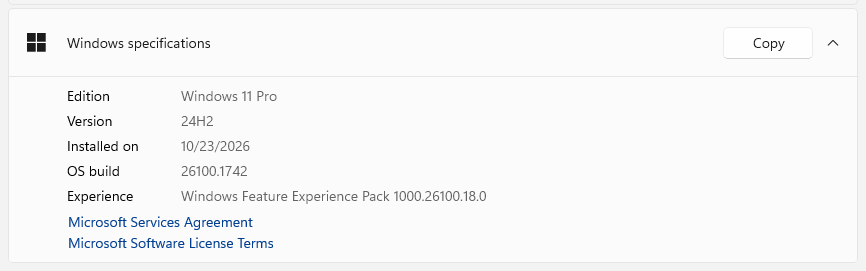
Close Settings.
If you see something else: QuickBooks Desktop and the Web Connector run only on Windows. On a Mac, AutoBook can connect to QuickBooks Online instead.
You are ready when
Section titled “You are ready when”- QuickBooks shows 24.0 or later, and it is the Canadian edition.
- The computer runs Windows 10 or 11 and can stay on and signed in.
- You know the QuickBooks Admin password, if the file has one.
- You are an admin in AutoBook.
Next: chapter 01, open the company file as Admin in single-user mode (qbd-setup-01-open-as-admin).
Tested on QuickBooks Desktop Enterprise 24.0 Canada (34.0.4022.3401), Web Connector 34.0.10010.76, Windows 11 Pro 24H2 (26100.1742), on 2026-11-28.
Screenshots © Intuit Inc. Used with permission.